Google Shopping image disapprovals: overlays, watermarks, placeholders and crawl errors
Once a store connects to Google Merchant Center, image disapprovals are among the most common diagnostics. Here's how to handle each cause, the Shopify-specific traps, and why a fixed image can take a while to clear.

When online stores start running Google Shopping, the first headache is usually not bidding. It's a long list of Merchant Center diagnostics, and a good share of them are about images.
A disapproved image matters more than it seems: the product can't appear in Shopping ads or free listings, so that traffic drops to zero. The good news is that the causes are concentrated and easy to work through by type. The rules below follow the Google Merchant Center help pages; they get updated, so click into any specific diagnostic for the latest wording.
Google's basic image requirements
| Item | Requirement |
|---|---|
| Minimum size | 100 × 100px for non-apparel, 250 × 250px for apparel |
| Maximum | Up to 64 megapixels and 16MB per file |
| Formats | JPEG, WebP, PNG, non-animated GIF, BMP, TIFF |
| Content | Accurately shows the product; no placeholders or generic images |
| Not allowed | Promotional text overlays, watermarks, borders, logos covering the product |
| Background | Plain white, transparent or light grey recommended |
| Additional images | More angles and scenes through the additional image field |
The minimum is just the bar for acceptance. For decent display, use at least 800 × 800px for the main image, ideally 1200px or more.
Cause 1: promotional overlays (the most common)
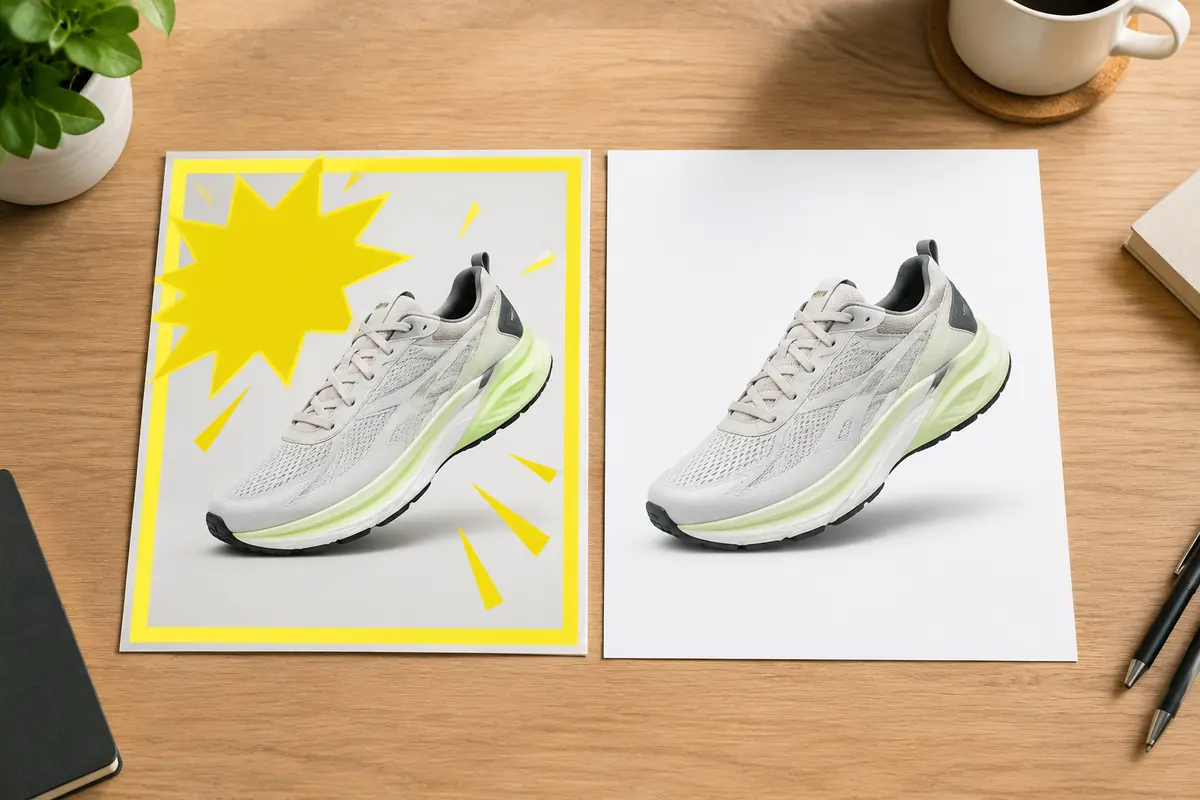
Many store images carry "SALE", "Free Shipping" or "-30%" badges, or a brand strip along one edge. They look normal in your store, but in Google Shopping they count as promotional overlays and get disapproved or limited.
What to do:
- Prepare a separate clean main image for the feed — no text, badges or borders;
- Point the feed at those image URLs, not at the badged storefront versions;
- Turn on automatic image improvements. Merchant Center can remove some overlays automatically. Use it as a backstop, not the plan; results vary.
On Shopify, many themes and promo apps draw badges with CSS on the storefront, so the image file itself stays clean and causes no problem. Trouble starts when the badge is baked into the image file.
Cause 2: watermarks and logos
Store logo watermarks, or watermarks left on supplier images, also get rejected. A brand logo printed on the product itself is fine; an identifier added on top of the image isn't.
Faint supplier watermarks are easy to miss. Clean them with watermark removal, then check every corner and the centre at 100% zoom.
Cause 3: too small or blurry
This usually happens when thumbnails downloaded from elsewhere, or small sizes generated by a theme, end up in the feed. Check that feed image URLs point to originals, not thumbnails.
Shopify image URLs can carry size parameters, and some feed apps default to smaller sizes. Adjust that in the app's settings.
Cause 4: placeholders and generic images
"Image coming soon" placeholders, or one generic image shared across different products, are treated as invalid. For variants, give each its own image — at minimum, colour variants should show the right colour.
Cause 5: images that can't be crawled
Sometimes the image is fine but Google can't fetch it:
- robots.txt blocks Google's image crawler;
- The URL requires a login or has hotlink protection;
- The URL returns an error or redirects too many times;
- The server is too slow and the fetch times out.
These diagnostics usually say the image couldn't be crawled or processed. Open the feed's image URL in a private browser window to confirm it loads, then review robots.txt.
Why a replaced image still shows an error
After you change an image, Merchant Center needs to recrawl and reprocess it, which isn't instant. A useful habit: change the image URL when you change the image (add a version to the file name, for instance). Overwriting a file at the same URL can be slower to pick up, because the old image may be cached.
Re-uploading in Shopify normally generates a new file URL, so this is rarely an issue there. Custom builds and stores on their own CDN need to watch caching.
Additional and lifestyle images
The main image is held to the strictest standard. Additional images are more flexible — different angles and in-use scenes — but still no overlays or watermarks. Google also has a lifestyle image field for showing products in real settings.
What we use:
- Main image: white or light grey background, product filling most of the frame;
- Additional images: two or three angles plus one or two in-use scenes;
- Lifestyle image: a real environment, product clearly visible, no text.
Habits for managing feed images
- Manage storefront images and feed images separately; the feed version is always clean;
- Prepare the feed main image at launch, not afterwards;
- Check Merchant Center diagnostics weekly, filtered to images;
- When adding sale badges to the storefront, confirm the feed images aren't affected;
- Change the file name or URL whenever you replace an image.
AI cutout can batch-produce clean white-background main images; spot-check edges and fine details afterwards. For ordering images on your own product pages, the "one image, one question" idea in our Amazon listing image order guide applies just as well.
Upload one product photo and get a full set of listing-ready visuals in minutes.
Keep reading
Amazon main and additional image requirements: white background, fill ratio and size
Read article
Testing Amazon main images with Manage Your Experiments: design, duration and reading results
Read article